What shipped in Brand Content on October 26, 2026, as the app and the BearingBridge help center describe it on November 16, 2026.
Five engines in the Model list
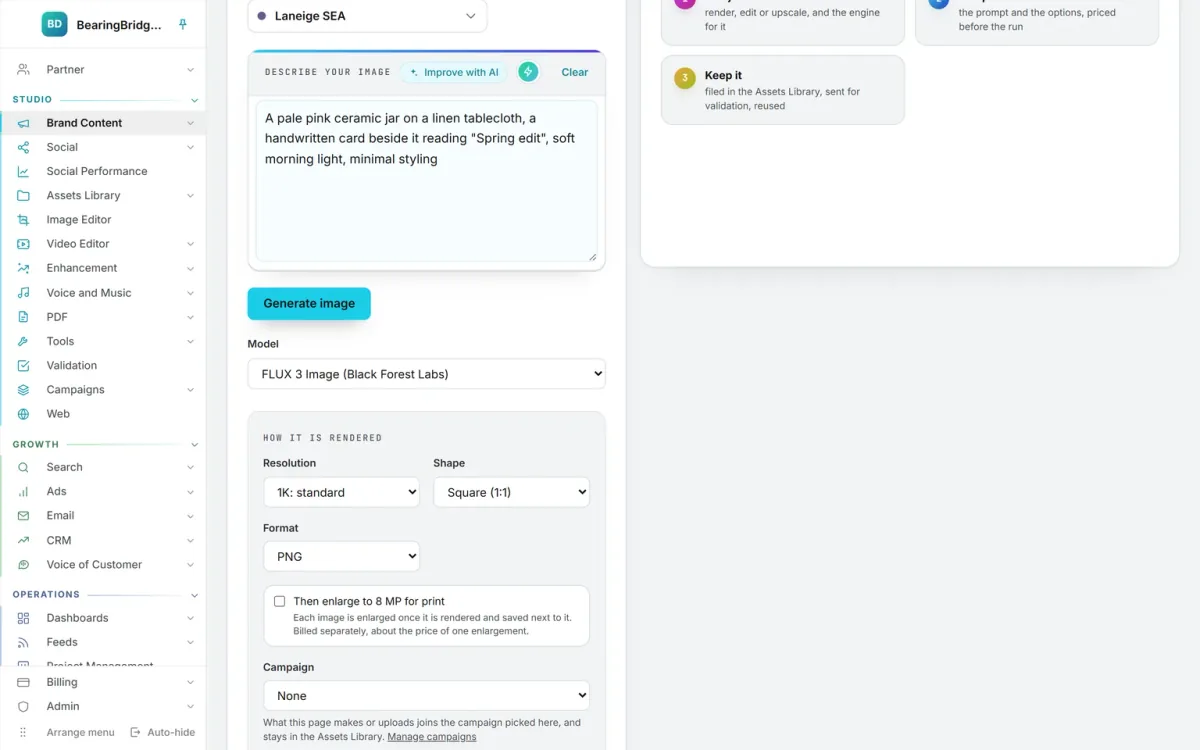
Since October 26, the Model list on the Image generation page (Brand Content > Image) has five more engines. Five older ones are gone from it, among them Nano Banana 2 and ChatGPT Image 2. That leaves 15 engines that render and edit, plus Wonder 3.5 for upscaling. Pick one in the list, and the form shows only the options that engine offers.
| Engine | Best for | What it does | Output |
|---|---|---|---|
| FLUX 3 Image (Black Forest Labs) | Exact text, unusual shapes | Renders and edits | 768 px to 4K, PNG |
| FLUX 3 Image Klein (Black Forest Labs) | Lots of drafts on a small budget | Renders and edits | 768 px to 4K, JPG or PNG |
| Nano Banana 2.1 (Google) | Photo edits, wide banners | Renders and edits | 1K, 2K, or 4K, PNG |
| MAI-Image-2.6-Flash (Microsoft) | Small, precise edits | Renders and edits | 1K or 1.5K, PNG |
| Wonder 3.5 (Topaz Labs) | Enlarging and restoring | Upscales only | 8, 16, or 24 MP, JPG |
Words on the picture: the two FLUX 3 engines
FLUX 3 Image gets the words you put in quotes right and keeps fine detail. It also has the widest choice of shapes in the list: fifteen, from 21:9 to 9:21, including 2:1, 7:5, 5:7, and 1:2. Think of a poster or a label mockup.
FLUX 3 Image Klein is the small, fast version. It turns out a 1K picture in about five seconds, and it’s among the least expensive engines in the list. It’s the one for trying out several ideas before you pay more for the one you keep.
Editing a photo you already have
Nano Banana 2.1 is now the only Nano Banana in the list, and the only engine with the 4:1 and 1:4 banner shapes.
MAI-Image-2.6-Flash, from Microsoft, is made for targeted edits. Change one object, the layout, or a line of text, and the rest of the picture stays as it was.
These two and both FLUX 3 engines take up to four source images per edit.
A picture that’s too small
Wonder 3.5 does one thing: it enlarges. Upload a single picture on the Upscale & restore tab and pick the file size, 8, 16, or 24 megapixels. It brings back real detail without changing what’s in the picture, keeps the shape you uploaded, and ignores the brief. For files already in your library, the Enhancement module runs it in batches.
What it costs and who can use it
Each engine shows its price in the list, and the price of your setup sits beside Generate image before anything runs. Runs are paid from your wallet. You need the editor role or above, on a brand with the Image module switched on. Every picture lands in the Assets Library with its prompt, engine, and cost.
The video below walks through the Image generation page from the brief to the finished picture, Model list included.